> ## Documentation Index
> Fetch the complete documentation index at: https://docs.cachethq.io/llms.txt
> Use this file to discover all available pages before exploring further.
# Components
> Learn how to manage components in Cachet.
In Cachet, a component represents any part of your system that can fail. Cachet displays components on your status
page, and you can group them into component groups.
For example, you may have an "Ingest" component that represents your ingestion service, or a "Database" component that
represents your database service.
You can manage your components by navigating to the "Components" page in the dashboard.
A component has the following properties:
* **Name**: The name of the component.
* **Status**: The current status of the component.
* **Description**: A brief description of the component.
* **Link**: A link to the component, such as a URL to the service.
* **Enabled**: Whether the component is enabled or not.
### Managing components from the dashboard
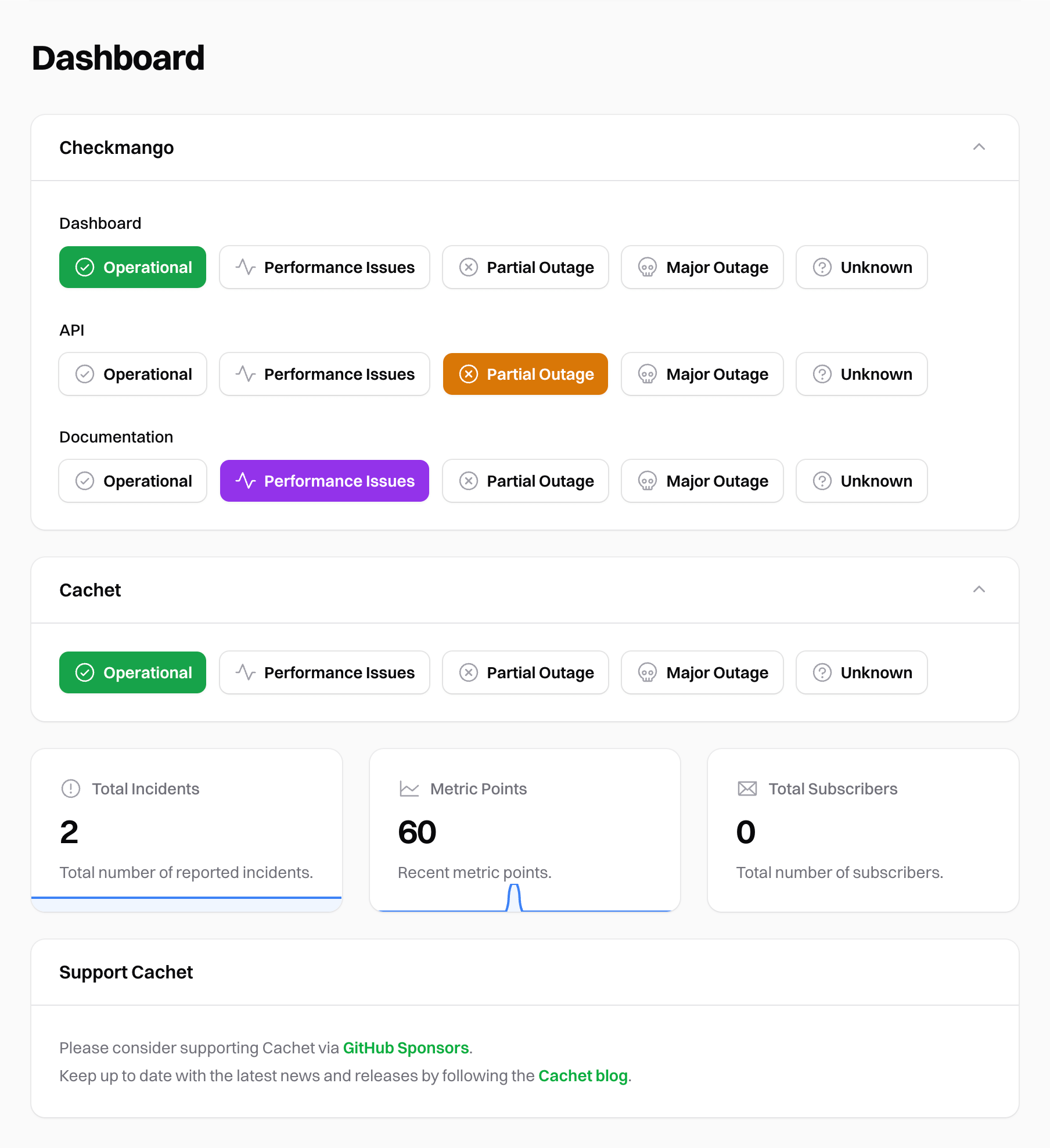
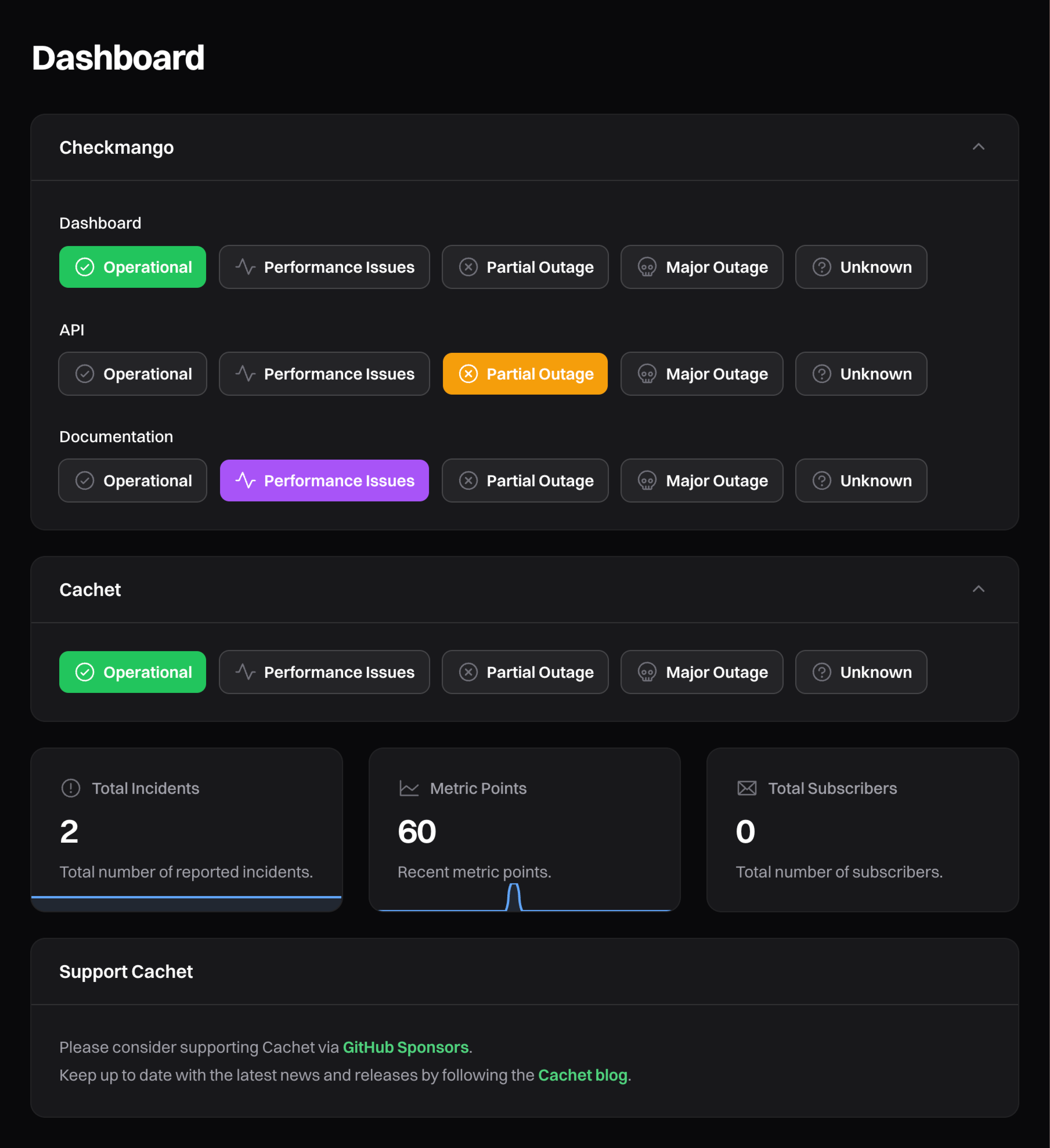
Cachet also provides a simple way of updating your component statuses directly from the dashboard homepage. Here you can update the status quickly by clicking the appropriate status button rather than navigating through the "Components" page.
 ### Component statuses
Components can have one of five statuses:
* **Operational**: The component is working as expected.
* **Performance Issues**: The component is experiencing performance issues.
* **Partial Outage**: The component is experiencing partial outage.
* **Major Outage**: The component is experiencing a major outage.
* **Unknown**: The component status is unknown.
## Component groups
To help organize your components, you can group them together into component groups. For example, you may have a
"Services" component group that contains all of your service components.
Cachet will automatically group any ungrouped components together. Cachet displays ungrouped components beneath any
component groups on your status page.
## Reordering components
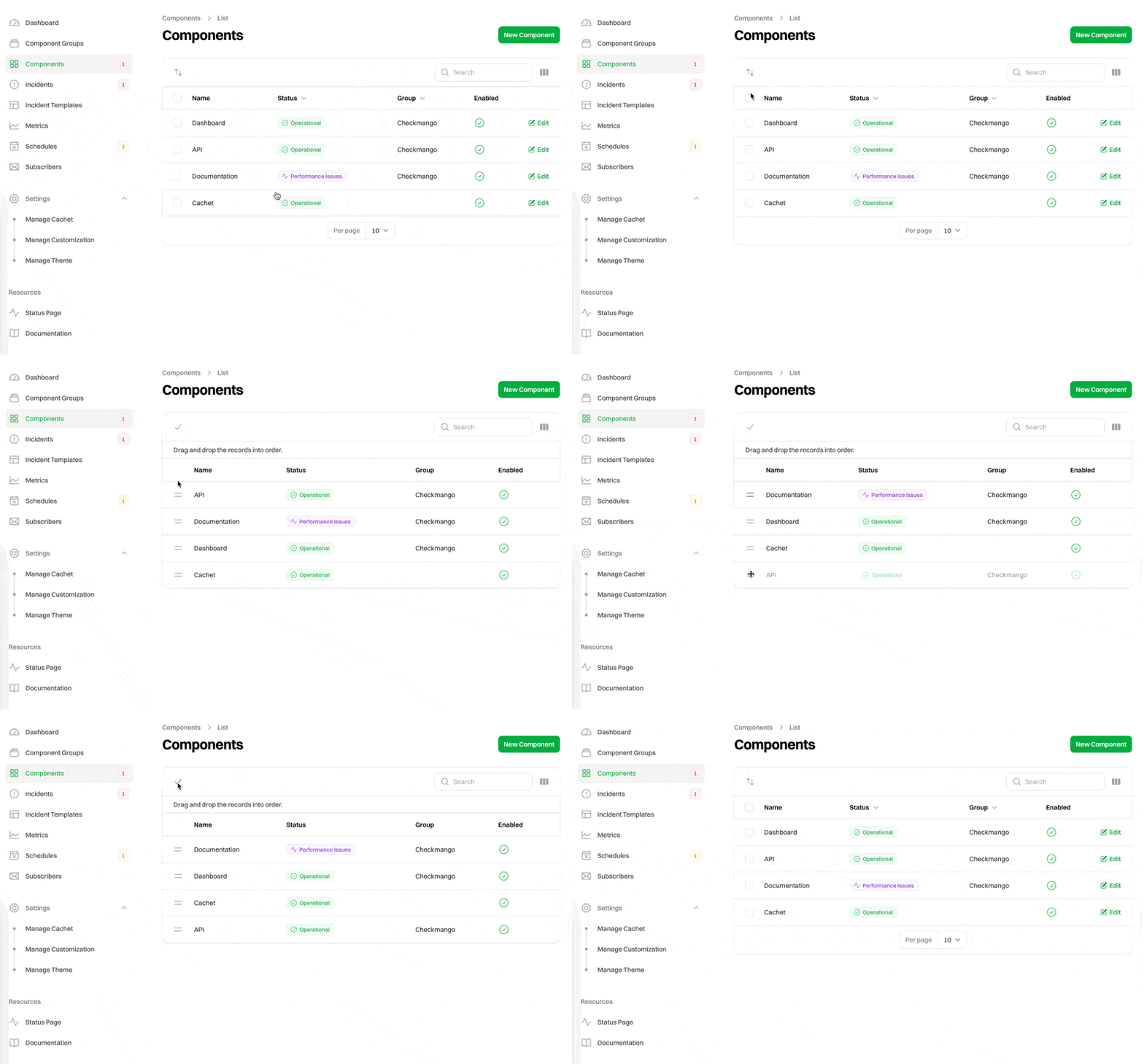
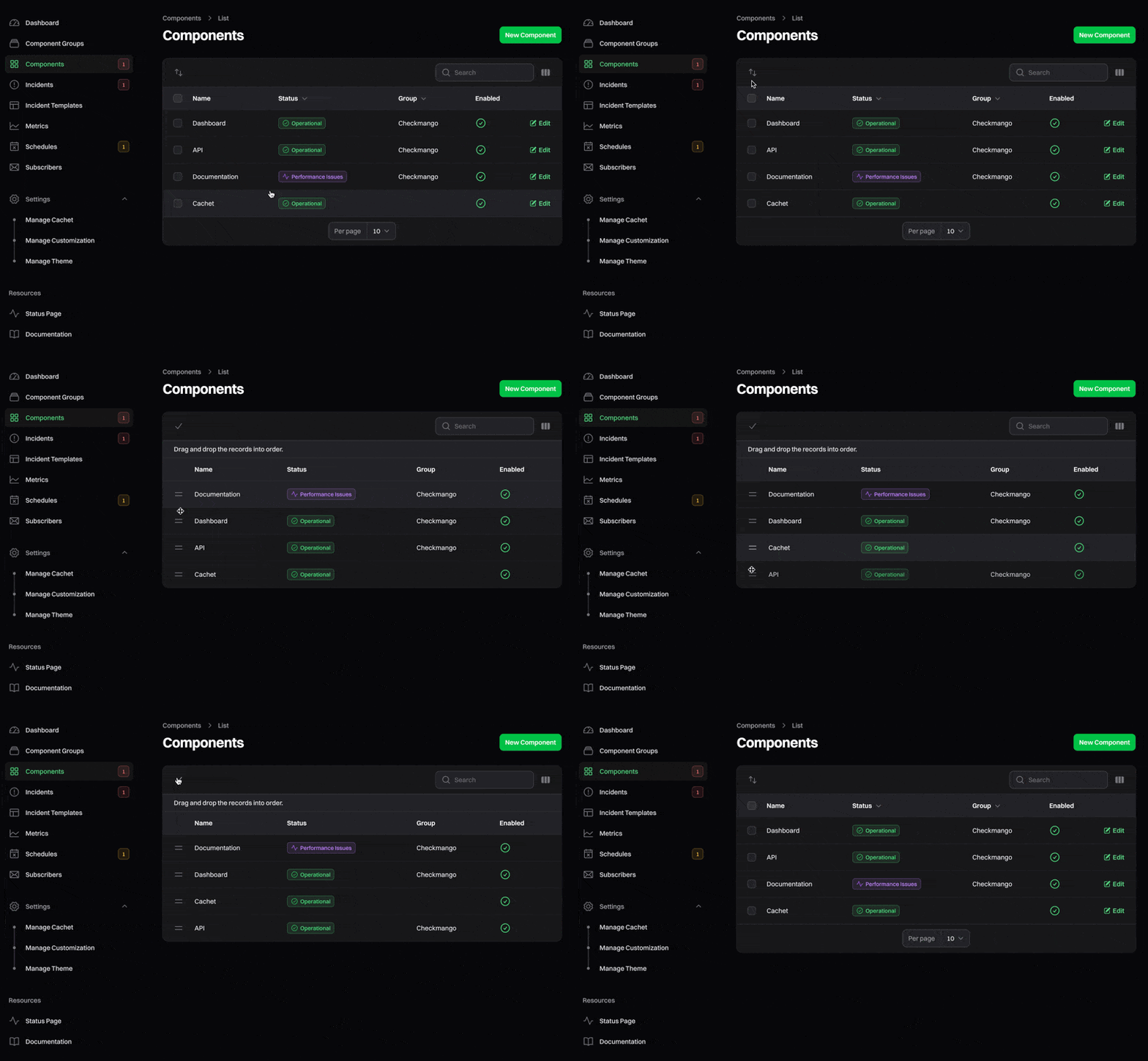
You may reorder components via the dashboard by dragging and dropping them into the desired order. To do this,
head to the "Components" page in the dashboard, click the swap icon (up and down arrows) in the top left of the table to
activate reordering mode, and then drag and drop the components into the desired order. Once you're happy with the new
order, click the check icon to save your changes.
You can also reorder components when editing a component group. The order will remain relative to the specific group.
### Component statuses
Components can have one of five statuses:
* **Operational**: The component is working as expected.
* **Performance Issues**: The component is experiencing performance issues.
* **Partial Outage**: The component is experiencing partial outage.
* **Major Outage**: The component is experiencing a major outage.
* **Unknown**: The component status is unknown.
## Component groups
To help organize your components, you can group them together into component groups. For example, you may have a
"Services" component group that contains all of your service components.
Cachet will automatically group any ungrouped components together. Cachet displays ungrouped components beneath any
component groups on your status page.
## Reordering components
You may reorder components via the dashboard by dragging and dropping them into the desired order. To do this,
head to the "Components" page in the dashboard, click the swap icon (up and down arrows) in the top left of the table to
activate reordering mode, and then drag and drop the components into the desired order. Once you're happy with the new
order, click the check icon to save your changes.
You can also reorder components when editing a component group. The order will remain relative to the specific group.