

- Name: The name of the component.
- Status: The current status of the component.
- Description: A brief description of the component.
- Link: A link to the component, such as a URL to the service.
- Enabled: Whether the component is enabled or not.
Managing components from the dashboard
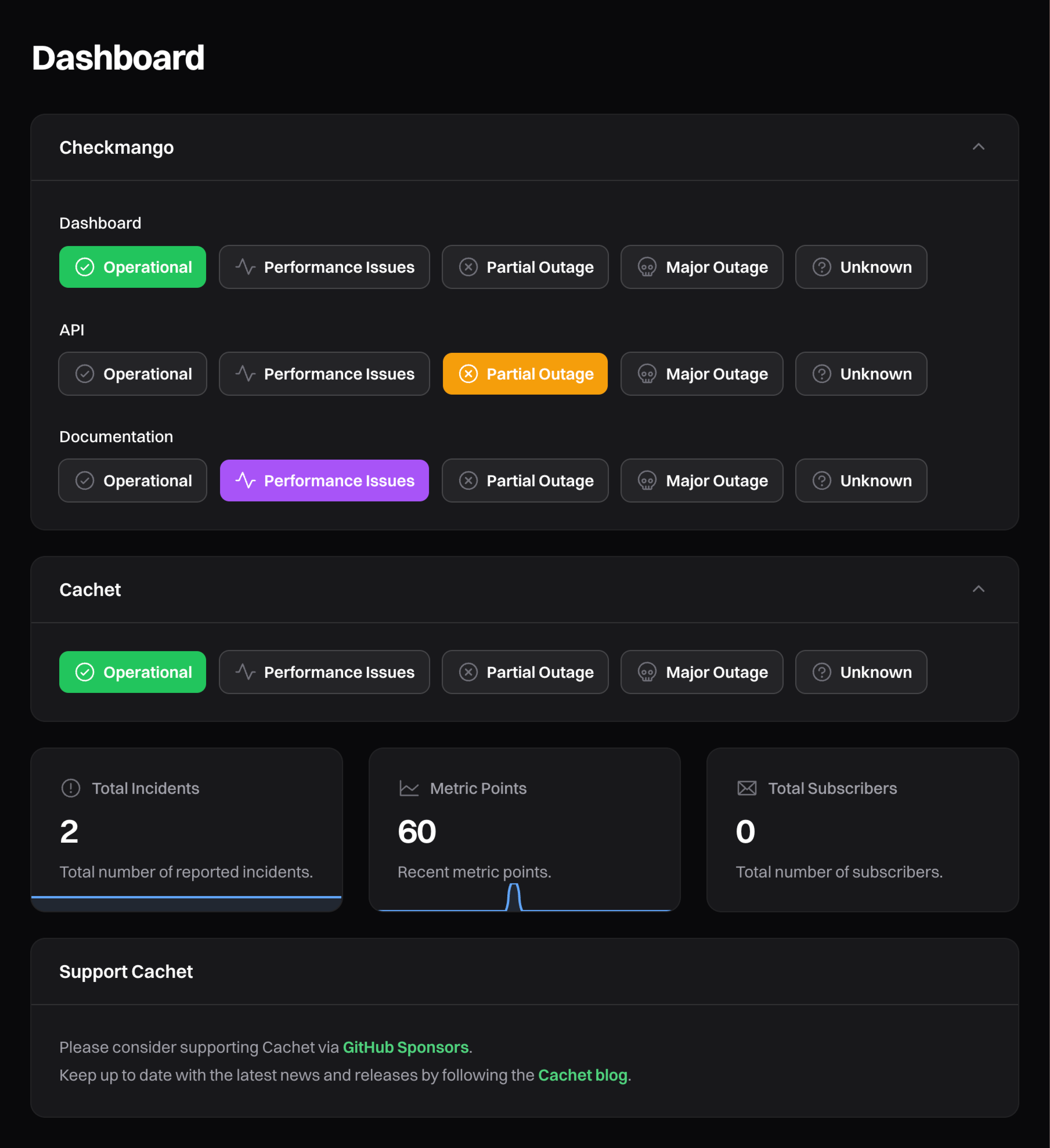
To update a component’s status from the dashboard homepage, click its status button. You do not need to open the Components page.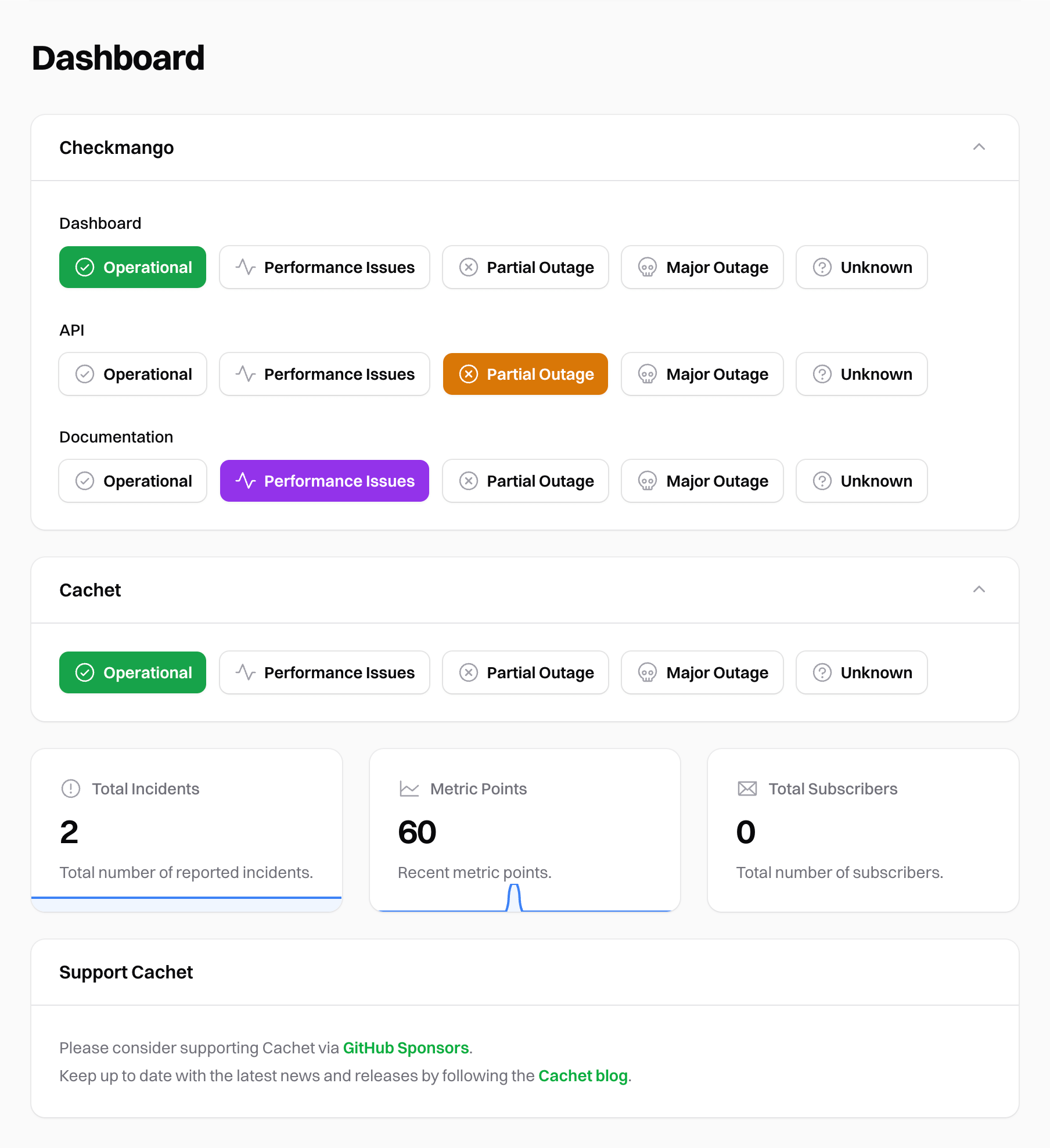
Update component statuses
Component statuses
Components can have one of six statuses:- Operational: The component is working as expected.
- Performance Issues: The component is experiencing performance issues.
- Partial Outage: The component is experiencing partial outage.
- Major Outage: The component is experiencing a major outage.
- Unknown: The component status is unknown.
- Under Maintenance: The component is undergoing maintenance. Schedules can set this status automatically.
Component groups
Component groups organize related components. For example, a “Services” group can contain all of your service components. Cachet displays ungrouped components together beneath the component groups on your status page. A component group has the following properties:- Name: The name of the group.
- Visibility: Whether the group is visible to users, guests, or always hidden.
- Collapsed: How the group behaves on the status page (see Collapse behavior).
- Order by: How components within the group are ordered (see Ordering strategies).
Group visibility
Like other resources, each component group has a visibility setting that controls who can see it:- Authenticated: Only visible to authenticated dashboard users.
- Guest: Visible to everyone, including guests.
- Hidden: Never displayed on the status page.
Collapse behavior
You can control whether a group appears expanded or collapsed on your status page. Each group can be set to one of:- Expanded: The group is always expanded, showing all of its components.
- Collapsed: The group is always collapsed.
- Collapsed unless a component is in an incident: The group stays collapsed until one of its components is not operational. Cachet then expands it automatically.
Reordering components
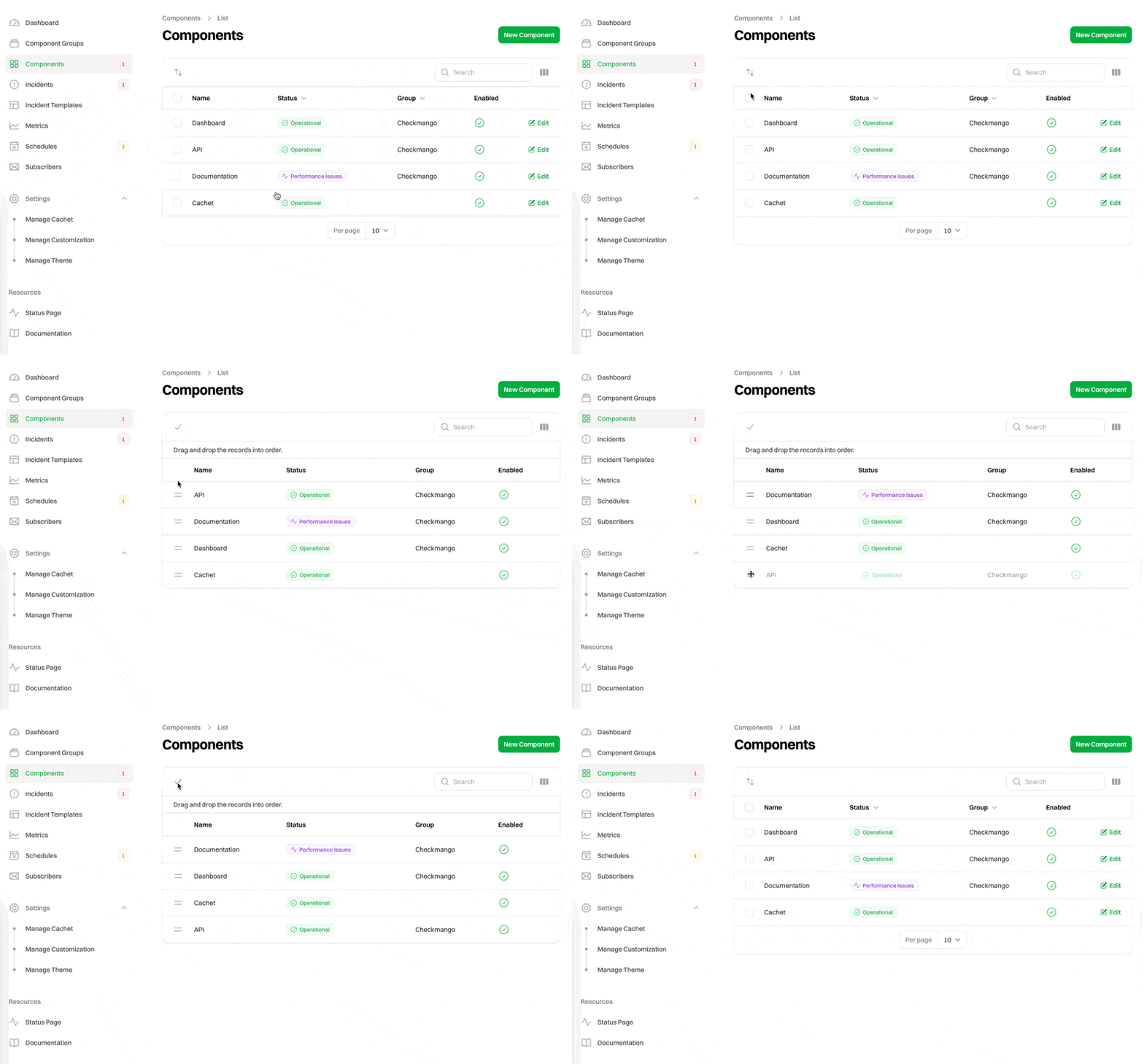
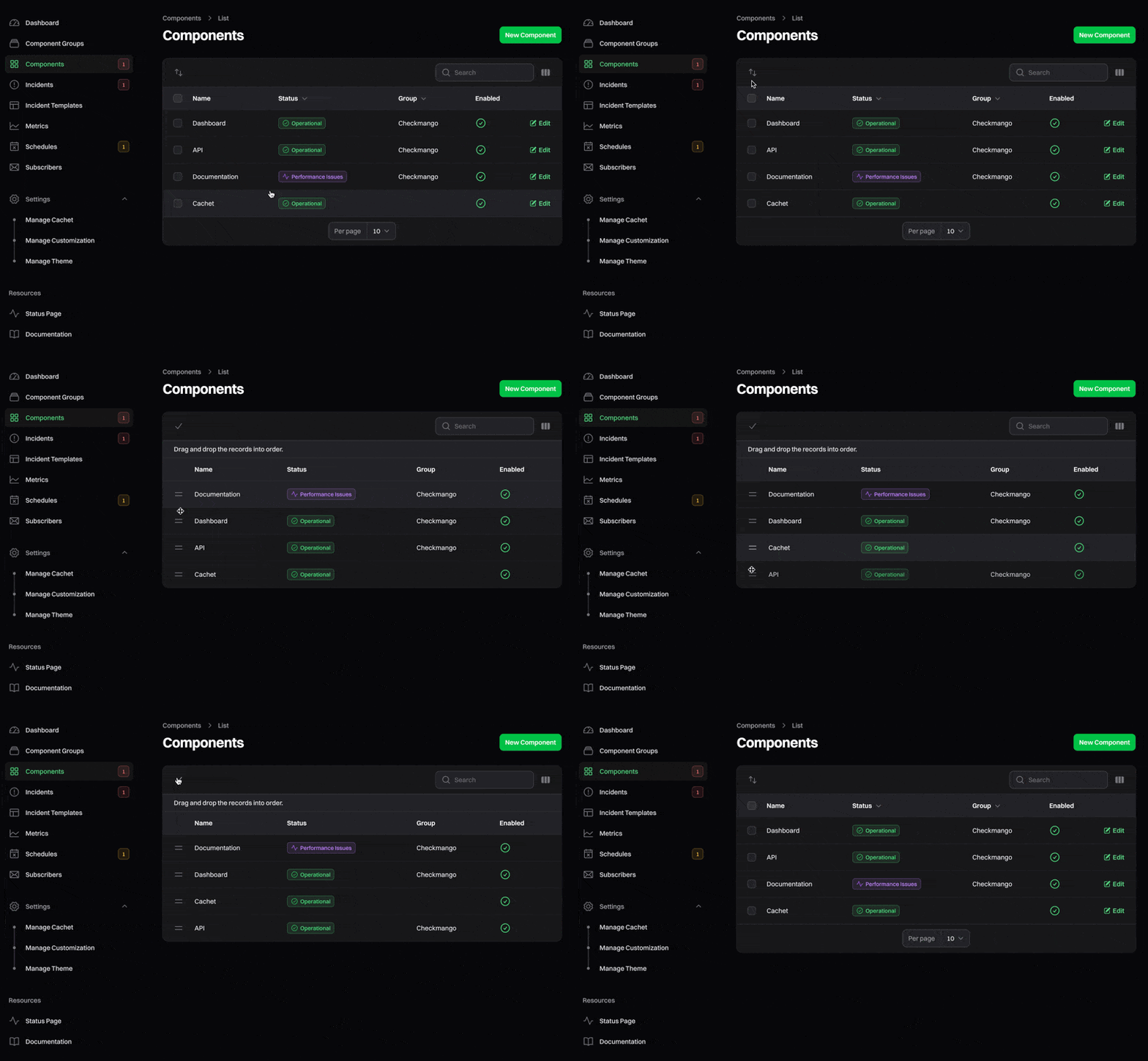
To reorder components in the dashboard:- Open Components.
- Click the swap icon with the up and down arrows in the top left of the table to activate reordering mode.
- Drag the components into the order you want.
- Click the check icon to save your changes.
Ordering strategies
By default, components follow the manual drag-and-drop order described above. Component groups can also order their components automatically. When editing a group, set “Order by” to one of:- Manual: Respect the manual drag-and-drop order.
- Name: Order alphabetically by name.
- Status: Order by component status.
- Last updated: Order by when the component was last updated.
- ID: Order by the component’s ID.